

GTM Private Music Streaming Service
The intent of this system is to provide music to use during event weekends, especially during paddock parties. You are welcome to tune into the service any time you like with your preferred app. **Music that has been shared to this private server is for use by GTM members ONLY, all music available here was provided by GTM members. Music is not intended to be re-shared, traded or sold.
Account Information
Server IP address: 68.238.163.16:4040
Your username will be first-initial+lastname (ie: jsmith – unless otherwise specified)
and the password will be lastname.gtm_member_number (ie: smith.10001)
Listening to Music
The GTM streaming service is built upon subsonic technology (www.subsonic.org); if you search the App Store or Google Play Store, and search “subsonic” there are plenty of apps that support this type of system. Subsonic has a list of recommended apps here: http://www.subsonic.org/pages/apps.jsp
For iphone we recommend an app like: iSub ; it’s a bit cartoony looking, but has all the features we need.
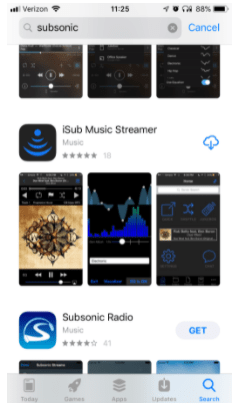
Once you have (any) subsonic compatible app installed, it will ask you for some server details.
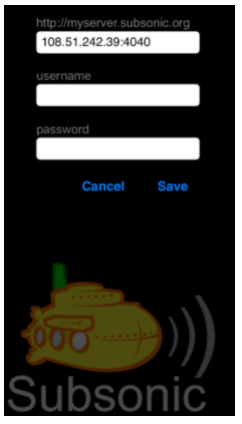
Enter our server IP: 68.238.163.16:4040 (include the :PORT)
your username will be first-initial+lastname (ie: jsmith – unless otherwise specified)
and the password will be lastname.gtm_member_number (ie: smith.10001)
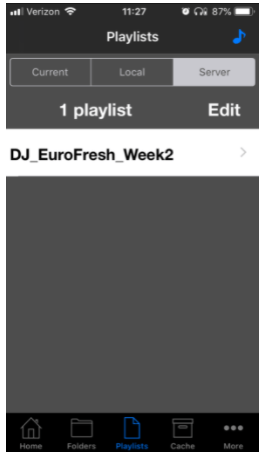
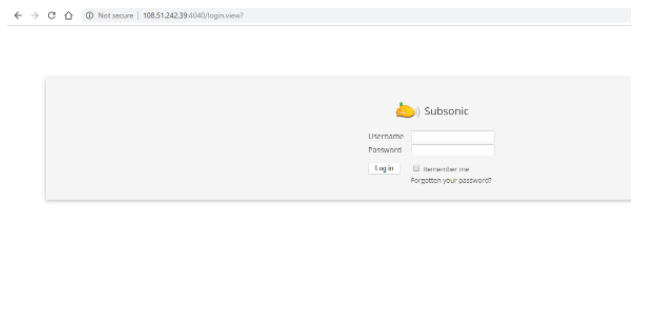
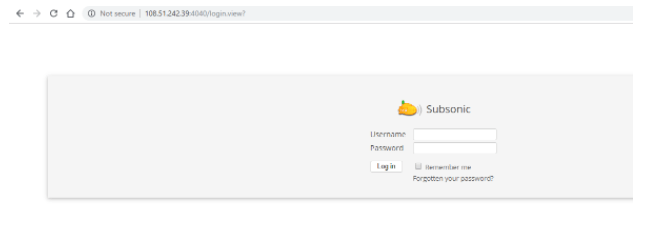
You can also listen to the available tunes through the web player by opening a browser and navigating to the server IP: http://68.238.163.16:4040 – enter you username and password to continue.
Becoming a “DJ”
For the audiophiles out there that would like to contribute to the streaming service by adding their own music, or curating playlists, there are extra steps required.
If you are going to upload music, you will need to download FILEZILLA from www.filezilla.org. Once installed; open Filezilla and enter your login information (as mentioned at the beginning of the doc.) to the top bar of the app. The IP address will get sftp:// added to it automatically, so ignore that. But be sure to enter the port number (22).

After clicking “quick connect” also click “yes” to accept the private key for the connection. You can choose to click the checkbox on that popup so that you only have to accept it once.
Next you will see a directory structure in the lower right quadrant of the app.
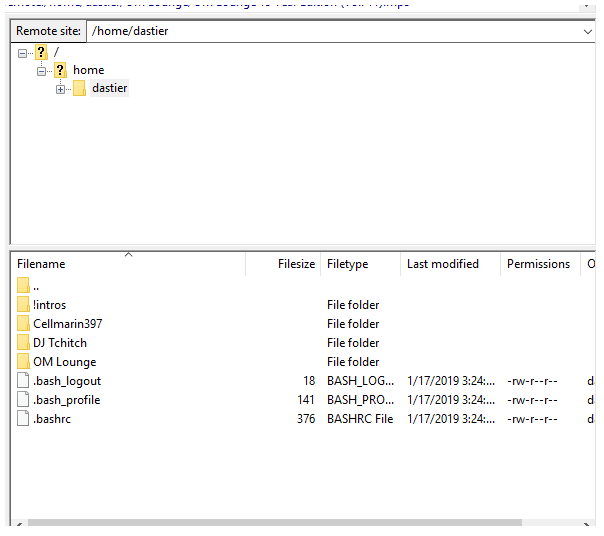
Note: there will already be a !intros folder in your directory, please do not delete that. This folder is used if you want to record an intro for your playlist, etc.
We ask that you use a “Lastname, Firstname” and/or “(The) Band Name” folder structure. This will help the subsonic system with redundant entries, etc. Drag&Drop your folders from your PC into this quadrant and wait for them to finish transferring.
All new files will be automatically added at 3am each morning; However, if you need immediate access to them, please speak to one of the system admins to get those added ASAP.
Once the files are added, logon to the Web interface
And navigate over to “INDEX”
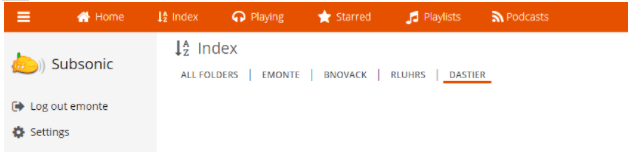
You will notice that a new folder matching your userID is available. If songs have been loaded they will appear in alphabetical groups on this page.
In order to share music with your friends, or setup a playlist for an event, click on the PLAYLISTS tab from the upper navigation bar.
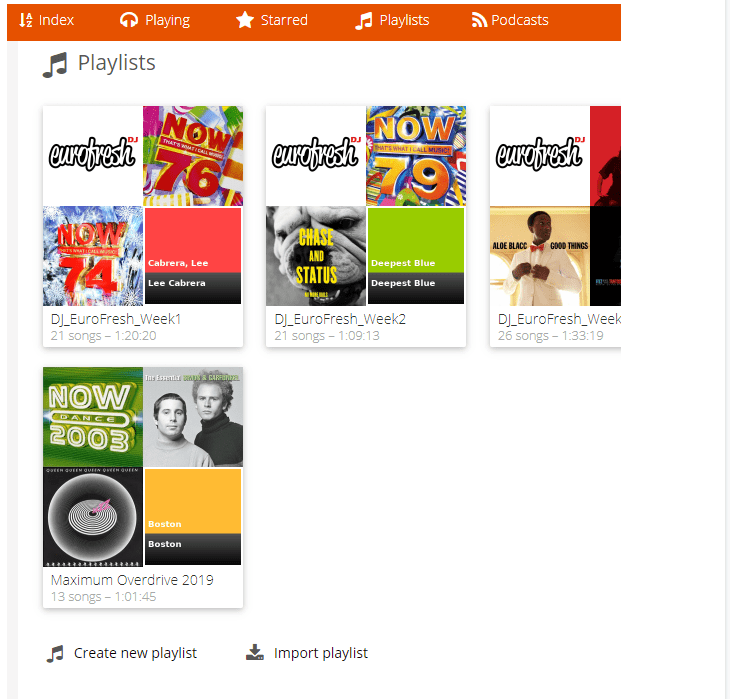
You will probably see that some playlists already exist in the system. Scroll to the bottom of the page and click “CREATE NEW PLAYLIST”
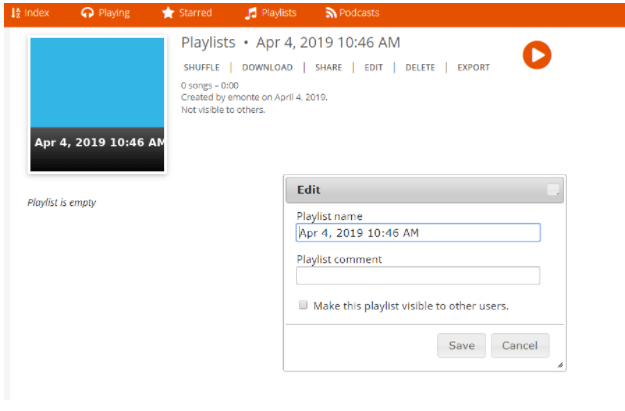
Subsonic will automatically generate a blank playlist with a timestamp as the name. Click on “EDIT” to update that information. Be sure to click the checkbox “Make this playlist visible to other users.” – When you are ready to share. Click “SAVE”.
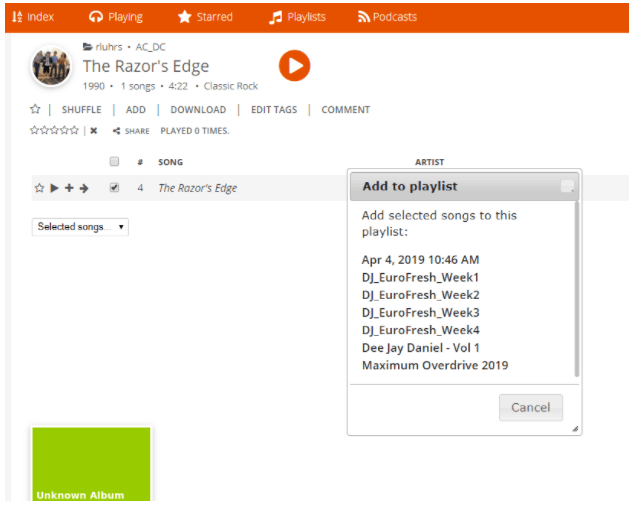
There are several different ways to add songs to a playlist; one of the easier ways is to return to the INDEX tab, filtering by your userID, and click into your artists and select the songs from the screen using the checkboxes, click the “Selected Songs” dropdown and select “add to playlist” – where a new popup menu will appear. You can select the playlist you just created and continue the process until you’ve added all the songs you would like. You can also search other peoples indexes and add songs to your playlist, this helps us save on space and redundant files.
Playlists are assembled First In – First Out (meaning in order by which songs were added). However, you can add them in any order you like and if you return to your playlist editor (as seen above) you can drag/drop + reorder songs in your playlist very easily. There is no “save button” as everything is immediately committed to the database.
Getting Help
If at any point you need help, please don’t hesitate to reach out to the system admins: Brad (brad@gtmotorsports.org) or Eric (eric@gtmotorsports.org) – or hit us up on slack #musicmatch.
Enjoy!